Get Work Done with Skills in the Legal AI Assistant

Skills let the Legal AI Assistant take on finished work, not just answers, so your team spends less time rebuilding output by hand and firms get consistent first drafts faster.

Skills will save you the copy-and-paste step. Instead of getting text back from the Legal AI Assistant and rebuilding it by hand, you ask for the finished work and the Assistant does it.

Skills are specialized capabilities in the NetDocuments Legal AI Assistant. The skills released today build Word documents, PowerPoint decks, Excel workbooks, and HTML visuals. Skills are part of the Early Access Channel, so new skills arrive there first and the list grows over time.

Use Skills in three steps

1

Turn on your skills

Open “Settings” in the Legal AI Assistant, then select “Skills”. Enable the skills you want to use. A skill you turn on applies to every chat, and skills still in early access carry an “Early Access” badge. If you do not see Skills, ask your NetDocuments administrator to turn on the Early Access Channel.
2

Call a skill

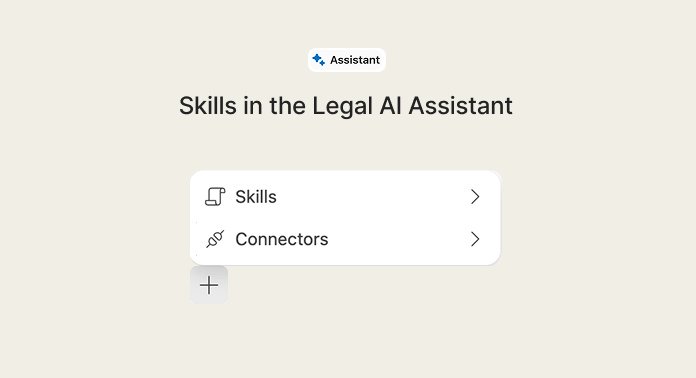
Use whichever way feels natural. Select the + icon in the chat window, choose “Skills”, and pick the skill. Type / in the chat window, then type the skill name or choose it from the menu. Skip the menu and describe what you want in plain language. Add relevant documents to the chat first, because the more source material the Assistant has, the more useful the result.
3

Review and save your file

The file pane tracks everything in the chat. Files the Assistant creates appear as working documents, and files you add appear as resource files. Open the working document, review it, and save it back into NetDocuments. As with any Assistant output, review the file before it goes out the door.

Prompts to try

Mutual NDA

Ask for a Word document you can review and edit.
Draft a mutual NDA between [Client] and [Counterparty] with a two-year term.
Copy prompt to clipboard

Client update deck

Ask for a PowerPoint deck with speaker notes.
Build a client update deck on the [Matter] timeline, with speaker notes.
Copy prompt to clipboard

Closing tracker

Ask for an Excel workbook you can sort and update.
Create a tracker of closing deliverables for [Deal] with owner, due date, and status columns.
Copy prompt to clipboard

Skills turn a chat request into finished work you can review and save. The Assistant does the building, and you keep the judgment.

Want a handy reference as you try your first skills? Download the Skills Quick Start Guide and keep it nearby.

Expert Office Hours

mondays
8am PST / 11am EST
wednesdays
12pm PST / 3pm EST
Sign up