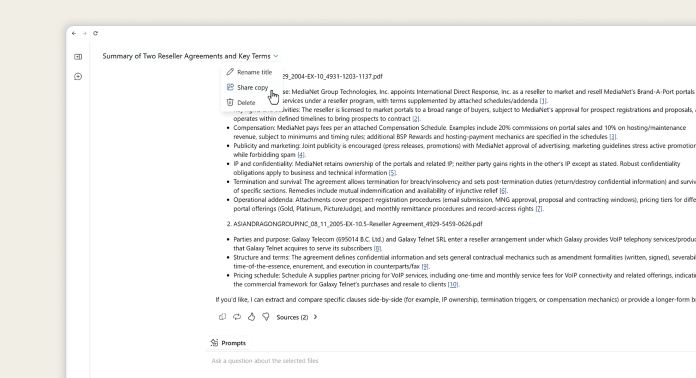
When you've worked through a document with the AI Assistant, you don't have to summarize your findings for a colleague or make them start from scratch. Share a copy of the thread and they can pick up exactly where you left off, with the same documents and the same conversation history.
What Your Colleague Sees
- The thread title is prefixed with [Shared].
- A banner at the top names who the original conversation was between (for example, "This is a copy of a chat thread between NetDocuments Assistant and [user name]").
- The conversation displays read-only and grayed out until they choose to continue it.
- A Continue chat button sits at the bottom. The thread won't appear in their chat history until they click it.
Continuing the Conversation
- Selecting Continue chat loads the original documents into their session and makes the chat window active.
- A divider reading "Messages beyond this point are only visible to you" marks where their side of the conversation begins.
- Anything they type after that point is private. You won't see it, and neither will anyone else the thread was shared with.
- Once they continue, the thread behaves like any other thread in their own chat history.
Don't let a finished analysis sit in your own chat history. The next time you wrap up a thread worth sharing, send the link instead of writing a recap.