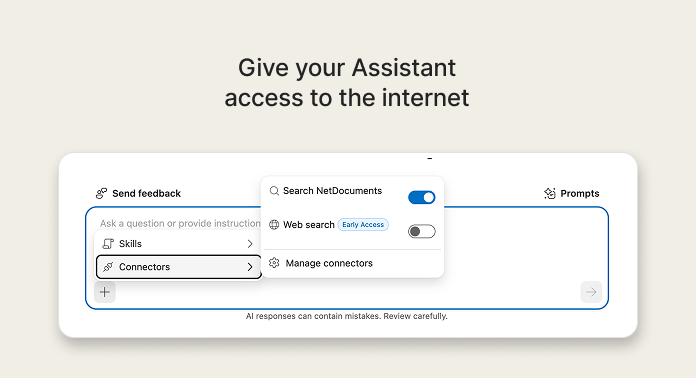
Web Search in the Legal AI Assistant

Get answers from the public internet right alongside your documents.

Web search lets the Assistant search the public internet when your documents cannot answer a question. It is an Early Access feature, so it appears only when early access is on and your admin has turned it on.

Get started

1

Turn on Web search

Open "Settings" > "Connectors" and use the "Web search" toggle. This turns it on for new chats going forward, but not for past chats. You can also select "+" > "Connectors" inside a chat.
2

Approve each search

When the Assistant shows a Web Search Request, review the exact query, then choose "Deny", "Allow Once", or "Allow for Session".
3

Check your sources

Answers include inline links and a Sources list below the answer. Open a source to confirm the answer before you rely on it.

When to use Web search

Fees, deadlines, and rules

Look up published fees, deadlines, and procedural rules.
What is the current filing fee for a Chapter 7 bankruptcy petition?
Copy prompt to clipboard

Recent regulatory changes

Check what has changed in a rule, regulation, or statute.
What are the latest amendments to the Federal Rules of Civil Procedure?
Copy prompt to clipboard

Client or deal background

Prepare for a client meeting or due diligence with public information.
What were the key takeaways from a public company's latest annual report?
Copy prompt to clipboard

Keep queries general. Leave client names and matter details out, since sites you visit can log the query. Results come from third-party websites that NetDocuments does not verify, so always check the sources.

Chats are tied to the mode where they were created. When early access is turned on, your previous chats are in standard mode and show a lock icon until you switch back.

Ready to try it? Open the Assistant, turn on Web search, and ask a question your documents cannot answer. See what you can find.

Expert Office Hours

mondays
8am PST / 11am EST
wednesdays
12pm PST / 3pm EST
Sign up