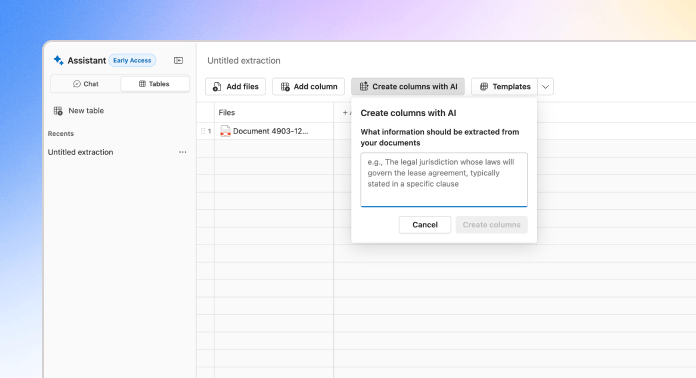
NetDocuments Tabular Review turns a stack of documents into a clean, citation-backed table in minutes. These habits are what keep an extraction something you can hand off with confidence, instead of one you end up redoing.
Build columns with AI
- Select Create Columns with AI and describe the full set of data points you want in one pass, not one column at a time.
- Read every column it proposes before you run the table. Don't accept the suggestions as-is.
- Tighten anything too vague, and fix the data type so it matches the answer: Date for a deadline, Currency for a fee, Party for a counterparty.
- Already run the table once and spotted a column that needs work? You don't have to rerun everything. Open the ellipsis icon in that column's header, select Edit column to update the prompt or data type, then select Run column to re-run just that one column against every document already in the table. This works the same way whether you built the column by hand or AI generated it for you.
Example prompt: Extract the effective date, governing law, term length, and renewal terms.
Save your column setup as a template
If you're pulling the same data points across similar matters, save the edited column setup as a template so the next review starts pre-built.
- Save after you've run the table and tightened the columns, not before. A template should provide a tested set of columns, not an unreviewed AI first draft.
- Name templates by what they extract, not by the matter they came from ("Vendor MSA – Payment & Termination Terms" rather than "Acme Contract Review").
- A template carries the column definitions only (names, prompts, data types). It does not carry any extracted values from the matter you built it on.
- If you notice you're tightening the same column prompt over and over across new matters, that's a signal to update the template itself rather than fixing it locally each time.
Try it: Save your next column setup as a template before you close out the table, not after you've moved on and forgotten what you tightened.
Run one extraction at a time
- Start your extraction and then let that table finish before starting a new one.
- You don't need to babysit it. Close the Assistant, keep working elsewhere in NetDocuments, and come back to a finished grid.
- Working through several document sets? Complete them one at a time instead of stacking runs on top of each other.
Try it: Kick off a run, then close the Assistant panel and go do something else. Come back once it's finished instead of opening a second table in the meantime.
Verify every cell before you trust it
- Click into cells before you rely on them, especially anything headed into a client deliverable or a compliance record. The document previewer jumps straight to the highlighted passage.
- In an exported Excel file, cells with a red corner indicator carry the citation text as a note. Hover before you trust the number.
- If a value is wrong or incomplete, edit it directly in the table. It gets marked "Manually edited" so anyone reviewing later can see a person corrected it, not the AI.
Try it: Fast extraction plus unverified output is just a faster way to be wrong. Make the citation check a standard step on due diligence or compliance work, where the table's accuracy is the deliverable.
Know what to expect before you start
- Documents need to be fully indexed in NetDocuments before you add them. A document still queued for indexing can throw a 500 error on that row; give it a minute and re-run the table.
- Large extractions can take longer to fully load. If rows are still populating, give it more time before assuming something's wrong.
- Tables are retained for 30 days, and that window renews every time you interact with the table. Inactive for 30 days and it's gone, so export anything you need to keep.
- There's no sharing inside NetDocuments yet. If a colleague needs the table, export it to XLSX and send the file.
Part 2 of 2. New to the tool? Start with Using Tabular Review for the setup steps.